
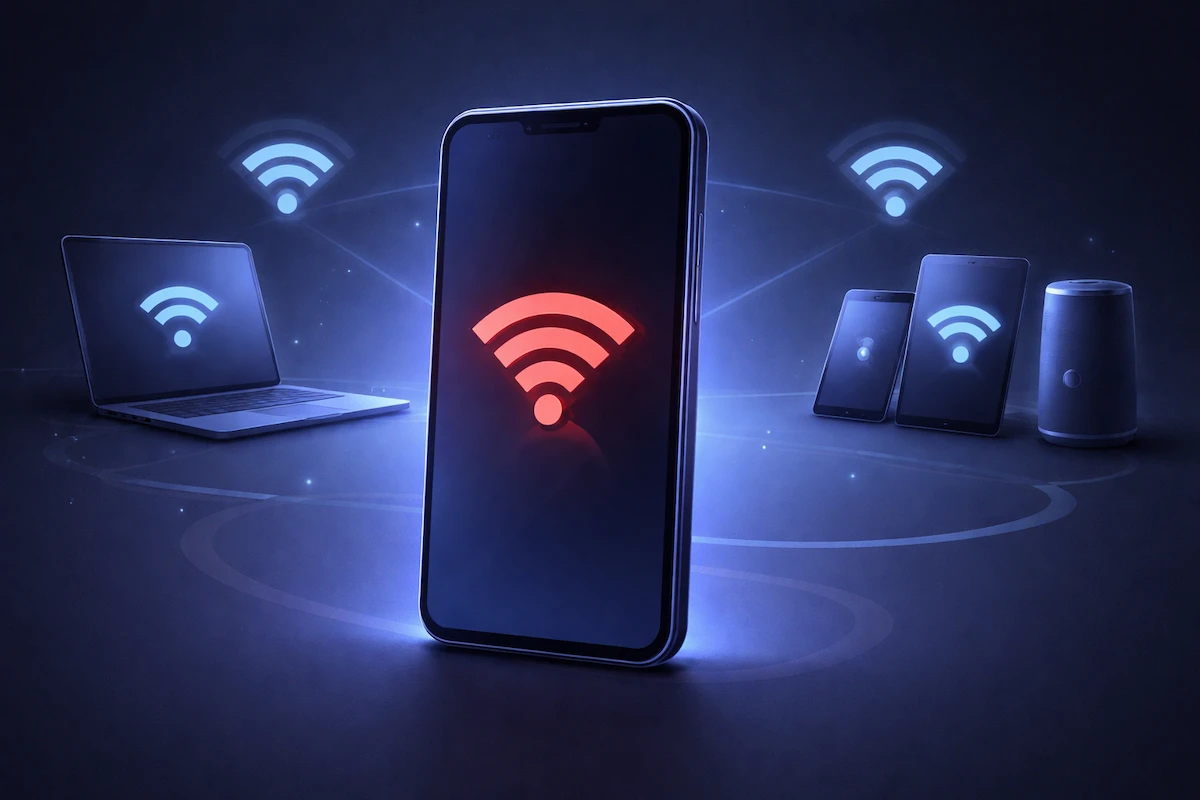
If Wi-Fi works perfectly on other devices but not on your phone, it can be confusing and frustrating. You may see laptops, tablets, or other phones connected without any issues, while your own phone struggles to stay online or fails to connect at all. This is a common situation, and in most cases it does not mean the Wi-Fi network itself is broken.
When only one device has trouble connecting, the cause is usually something specific to that phone rather than the router or internet service.
Reason 1: A Temporary Network Glitch on Your Phone
Sometimes a phone keeps outdated or incomplete connection data in the background. Even though other devices connect normally, your phone may fail to establish a clean connection.
You may notice this if Wi-Fi suddenly stops working on your phone without any clear reason.
What to do:
- Turn Wi-Fi off on your phone and wait a few seconds
- Turn Wi-Fi back on and reconnect to the network
- Restart your phone if the problem continues
In many cases, this simple reset is enough to restore a stable connection.
Reason 2: Saved Wi-Fi Network Settings Are Causing Conflicts
Your phone stores Wi-Fi network information, including security and connection preferences. Over time, these saved settings can become inconsistent, especially after updates or network changes.
Other devices may reconnect cleanly, while your phone continues using outdated settings, which can lead to repeated Wi-Fi disconnects over time.
What to do:
- Open Wi-Fi settings on your phone
- Forget the affected Wi-Fi network
- Reconnect by entering the password again
- Restart your phone once after reconnecting
This forces your phone to rebuild the connection from scratch.
Reason 3: Power Saving or Background Restrictions Affect Wi-Fi
Some phones limit background network activity to save battery. This can affect Wi-Fi stability on your phone, even though other devices remain connected.
This often happens quietly, without any clear warning.
What to do:
- Turn off power saving mode temporarily
- Check battery optimization settings
- Make sure Wi-Fi or system connectivity is allowed to run normally in the background
If Wi-Fi starts working after these changes, battery related settings were likely the cause.
Reason 4: Your Phone Is Switching Between Wi-Fi and Mobile Data
Phones sometimes switch between Wi-Fi and mobile data when they think the Wi-Fi signal is weak. This behavior can affect only one phone, depending on its settings.
Other devices may stay connected to Wi-Fi, while your phone keeps disconnecting or failing to load data.
What to do:
- Turn off mobile data temporarily
- Connect to Wi-Fi only
- Check if the connection becomes stable
If Wi-Fi works normally with mobile data turned off, automatic network switching is likely the issue.
Reason 5: Software or Update Related Issues on Your Phone
After a system update, your phone may behave differently on the network. Some updates adjust how Wi-Fi, battery usage, or background activity works.
Other devices that did not receive the same update may not be affected.
What to do:
- Restart your phone normally. This means a simple restart, not a factory reset
- Turn Airplane Mode on for a few seconds, then turn it off
- Give the phone some time if the issue started right after an update
Many update related issues resolve themselves after a short adjustment period.
Quick Checklist
- Restart your phone normally
- Forget and reconnect to the Wi-Fi network
- Check power saving and battery settings
- Disable mobile data and test Wi-Fi only
- Restart the router if needed
Final Thoughts
If Wi-Fi works on other devices but not on your phone, the problem is usually local to that device. Temporary glitches, saved network settings, battery restrictions, or recent updates are the most common causes. These issues are normal and fixable in most cases. If Wi-Fi still does not work across different networks, it may be time to check for deeper software problems or contact your device manufacturer.