
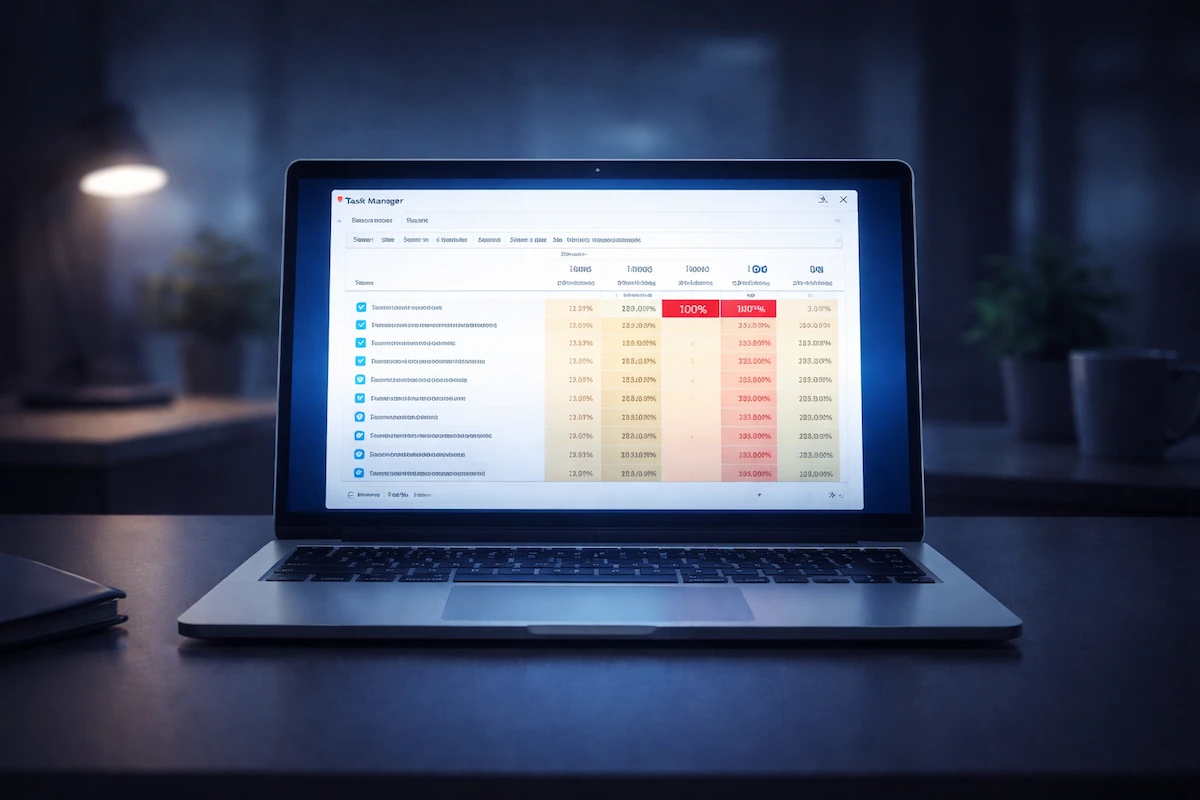
If you open Task Manager and see Windows 100% disk usage constantly, your computer may feel extremely slow. Programs take longer to open, the system may freeze briefly, and even simple tasks become frustrating.
Windows 100% disk usage does not automatically mean your hard drive is failing. In many cases, the issue is caused by background services, memory pressure, corrupted files, or a slow storage device struggling to keep up.
The key is identifying whether the disk activity is temporary or sustained and which process is responsible.
If your computer also freezes randomly or shows blue screen errors, heavy disk activity may be part of the same underlying problem.
What Does Windows 100% Disk Usage Really Mean?
When Windows 100% disk usage appears in Task Manager, it means the drive is fully occupied handling read and write requests.
Short spikes are normal during updates or file transfers.
Constant 100% disk usage is not.
This situation typically occurs because:
- A background process is repeatedly accessing the disk
- Windows Update is installing components
- Search indexing is rebuilding
- The drive is too slow for the workload
- File system corruption is causing retries
The first step is to identify what is consuming disk activity.
Step 1: Identify the Disk-Heavy Process
Press Ctrl + Shift + Esc to open Task Manager.
Click the Disk column to sort by usage.
Look for a process that consistently stays at the top.
Common processes that trigger Windows 100% disk usage include:
- Windows Update
- Antivirus scans
- Service Host processes
- Windows Search
- Third-party backup tools
If one process dominates disk usage for more than several minutes, that is your starting point.
Step 2: Check Windows Update Activity
Windows updates frequently cause temporary Windows 100% disk usage.
Open Settings > Windows Update.
Check whether updates are installing.
If disk usage increased immediately after an update, allow the process to complete and restart once.
Temporary post-update indexing can keep disk usage high for 10–30 minutes.
Step 3: Test Windows Search Indexing
Search indexing may continuously scan files.
Press Win + R.
Type services.msc.
Locate Windows Search.
Right click and select Stop.
Monitor disk activity for several minutes.
If Windows 100% disk usage drops significantly, indexing may be contributing to the overload.
Step 4: Check Disk Health
File system errors can cause repeated read attempts.
Open Command Prompt as Administrator and run:
chkdsk C: /f
If prompted, schedule it at restart.
If Windows 100% disk usage improves after repair, file corruption was likely involved.
Step 5: Scan and Repair System Files
Corrupted system components may trigger abnormal disk behavior.
Run:
sfc /scannow
If corruption is detected, restart and recheck disk activity.
If issues persist, run:
DISM /Online /Cleanup-Image /RestoreHealth
These built-in tools often resolve persistent disk overload problems.
Step 6: Evaluate Startup Programs
Too many startup applications can overwhelm slower drives.
Open Task Manager.
Go to Startup.
Disable non-essential programs.
After rebooting, check whether Windows 100% disk usage remains constant.
Step 7: HDD vs SSD Reality
If your system uses a traditional HDD, Windows 100% disk usage is far more common.
HDDs struggle with random read/write operations compared to SSDs.
If troubleshooting does not resolve sustained disk overload, upgrading to an SSD usually delivers the most noticeable improvement.
Step 8: Check RAM Pressure
Low RAM can force Windows to use the page file heavily, increasing disk activity.
Open Task Manager and review Memory usage.
If memory usage remains near maximum, disk paging may be the real cause of Windows 100% disk usage.
Upgrading RAM can significantly reduce disk pressure.
Step 9: Check Event Viewer for Disk Warnings
Press Win + X.
Open Event Viewer.
Go to Windows Logs > System.
Look for repeated disk warnings or errors near the time performance drops.
If you see recurring disk-related warnings, you may want to review Microsoft’s official disk troubleshooting guidance.
Quick Checklist
If Windows 100% disk usage persists, review:
- Disk-heavy processes in Task Manager
- Windows Update activity
- Disk integrity
- System file corruption
- Startup programs
- RAM pressure
- HDD limitations
Finding the exact trigger is more effective than disabling random services.
When Should You Be Concerned?
Occasional spikes in disk usage are normal.
However, if Windows 100% disk usage remains constant for hours and the system becomes unresponsive, hardware testing may be necessary.
Repeated disk warnings combined with freezing or blue screen errors should not be ignored.
Conclusion
Windows 100% disk usage can severely impact performance, but it does not automatically indicate hardware failure.
In most cases, background services, memory pressure, corrupted files, or slow storage devices are responsible.
By identifying the disk-heavy process and systematically checking updates, indexing, disk integrity, and RAM usage, most disk overload issues can be resolved without replacing hardware.
If the system relies on an older HDD, upgrading to an SSD may provide the most dramatic improvement.