
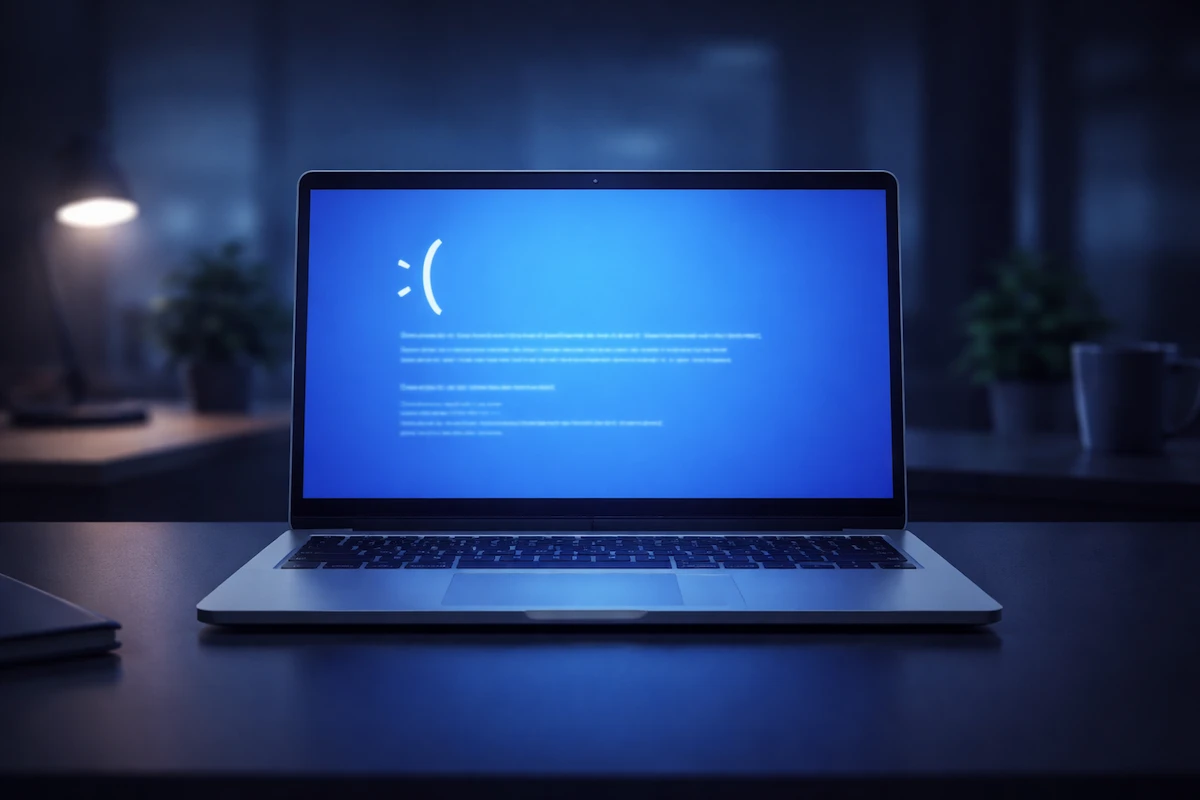
If you see a Windows blue screen error, it usually happens suddenly. The screen turns blue, your system stops responding, and you may see a short message followed by an automatic restart.
While a Windows blue screen error can look serious, it is not always a sign of permanent hardware failure. In most cases, the crash is triggered by driver instability, memory problems, corrupted system files, or storage errors.
The most important detail on that blue screen is the stop code. That code is not random. It points toward the category of failure.
If your computer has also been freezing randomly or restarting on its own, those issues may share the same root cause.
What Is a Windows Blue Screen Error?
A Windows blue screen error, also called a stop error or BSOD, appears when the operating system detects a critical condition that it cannot safely recover from.
Instead of continuing and risking data corruption, Windows stops completely and displays a diagnostic screen.
On that screen, you will usually see:
- A stop code
- A brief description
- Sometimes a driver file name
That information is the key to troubleshooting.
Understanding Stop Codes
When a Windows blue screen error appears, the stop code helps narrow the problem area.
Common examples include:
MEMORY_MANAGEMENT
Often related to unstable RAM or memory corruption.
IRQL_NOT_LESS_OR_EQUAL
Usually caused by faulty drivers or hardware conflicts.
SYSTEM_SERVICE_EXCEPTION
Frequently linked to graphics drivers or third-party software.
CRITICAL_PROCESS_DIED
Indicates a core system process unexpectedly stopped, often due to corrupted system files or disk issues.
KERNEL_SECURITY_CHECK_FAILURE
May point to driver incompatibility or memory problems.
If you write down the stop code and notice it repeats, you already have a strong diagnostic direction.
Driver Problems and Recent Updates
A large percentage of Windows blue screen error cases are caused by drivers.
This often happens after:
- Installing a new GPU driver
- Connecting new hardware
- Major Windows feature updates
To check:
Right click Start
Open Device Manager
Look for warning symbols
If the issue began after a driver update, use Roll Back Driver
Graphics drivers are particularly common triggers.
Faulty RAM and Memory Instability
Unstable memory can cause unpredictable crashes.
To test RAM:
Press Win + R
Type mdsched.exe
Restart and run the Windows Memory Diagnostic
If errors appear, memory modules may need replacement.
If your Windows blue screen error occurs under heavy load, memory instability becomes more likely.
Corrupted System Files
Damaged system files can also trigger stop errors.
Run:
sfc /scannow
If corruption is detected and cannot be repaired, then run:
DISM /Online /Cleanup-Image /RestoreHealth
These built-in tools resolve many file-related crash issues.
Disk Errors and Storage Problems
Storage corruption can also cause a Windows blue screen error.
Run:
chkdsk C: /f
If crashes happen while opening files or launching programs, disk health should be examined carefully.
Overheating and Hardware Stress
Although overheating more commonly causes shutdowns, extreme temperature spikes can also lead to system crashes.
Signs include:
- Loud fan noise before crash
- Crash during gaming or video editing
- System feels abnormally hot
Thermal instability should not be ignored.
Disable Automatic Restart
Sometimes Windows reboots too quickly and you cannot read the stop code.
To disable automatic restart:
Press Win + R
Type sysdm.cpl
Open Advanced tab
Startup and Recovery > Settings
Uncheck Automatically restart
Now the Windows blue screen error will remain visible for analysis.
Check Event Viewer for Crash Logs
Windows logs detailed crash information.
Press Win + X
Open Event Viewer
Navigate to Windows Logs > System
Look for critical entries near the crash time.
If you see repeated Kernel-Power events, you may want to review Microsoft’s documentation on Event ID 41 for deeper technical details.
Quick Checklist
If you experience a Windows blue screen error, check:
- The stop code shown on screen
- Recent driver changes
- Memory health
- System file integrity
- Disk condition
- Overheating signs
Patterns matter. If the same stop code appears repeatedly, focus your troubleshooting there first.
When Should You Be Concerned?
An isolated Windows blue screen error after a major update may not indicate serious damage.
However, frequent crashes, especially during light tasks, may point to hardware instability.
Repeated stop codes related to memory or storage should be investigated promptly.
Conclusion
A Windows blue screen error may look severe, but in most cases it is caused by drivers, memory instability, corrupted files, or storage issues.
The stop code is your most valuable clue. By identifying that code and systematically checking drivers, RAM, disk health, and system integrity, you can often resolve the issue without replacing hardware unnecessarily.
Persistent or repeated blue screen events, however, should not be ignored.