
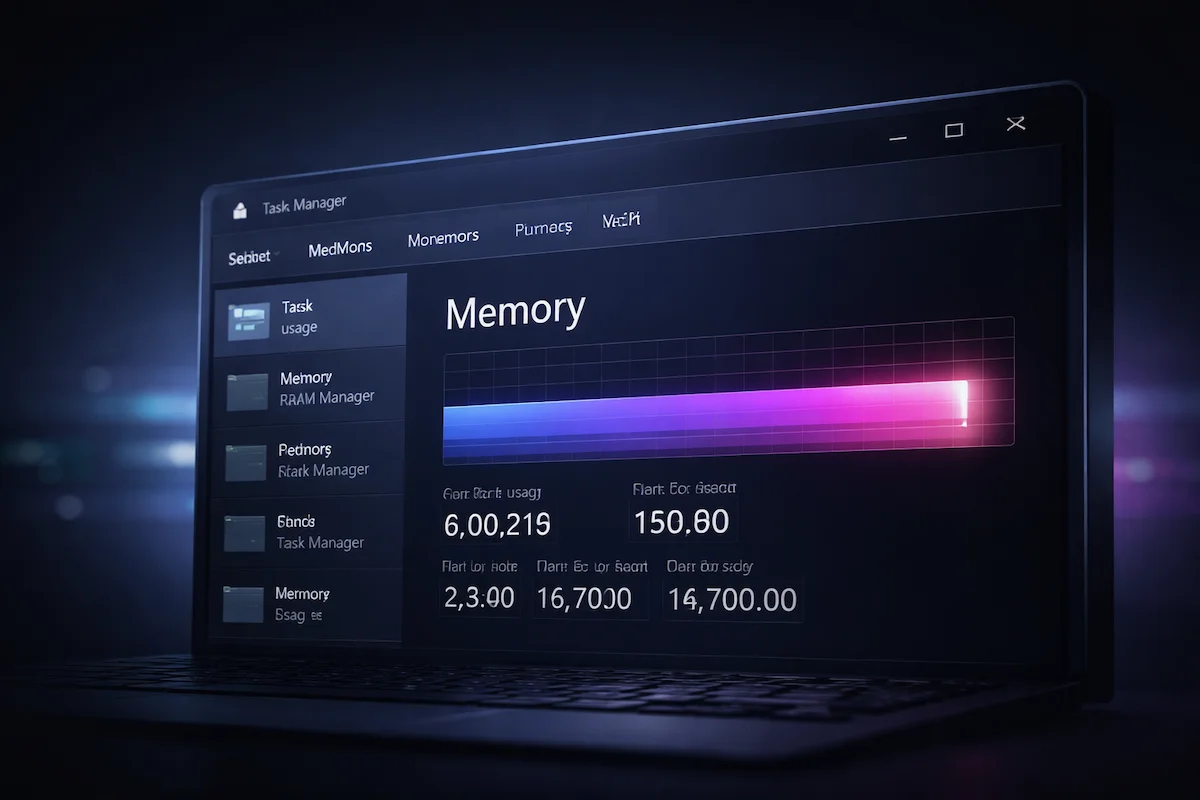
If you notice windows high ram usage after startup, your system may feel slower than expected even when CPU usage appears normal. Task Manager may show 70% to 90% memory usage immediately after login, which can raise concerns about memory leaks, background services, or hardware limitations.
Temporary memory spikes during boot are normal. Windows allocates RAM for system services, startup programs, caching, and memory compression. However, if windows high ram usage after startup remains above 80% for more than 10–15 minutes with minimal applications open, further investigation is required.
Why Windows High RAM Usage After Startup Happens
When Windows starts, multiple components initialize simultaneously. Background services load into memory, security tools begin scanning, startup applications allocate resources, and Windows caches frequently used files to improve responsiveness. This design improves speed — but it can also temporarily increase RAM usage.
The issue begins when windows high ram usage after startup does not stabilize. Persistent high memory consumption may indicate startup overload, memory leaks, excessive background services, misconfigured virtual memory, or insufficient physical RAM.
How to Verify Real Memory Usage
- Press Ctrl + Shift + Esc
- Open the Performance tab
- Select Memory
- Compare “In Use” with “Available” memory
If memory usage drops after several minutes, the spike was temporary. If it remains high or continues increasing, one of the fixes below should resolve the issue.
1. Disable Excess Startup Applications
Too many programs launching at login is one of the most common causes of windows high ram usage after startup.
- Open Task Manager
- Go to the Startup tab
- Disable non-essential applications
- Restart and observe memory behavior
2. Perform a Clean Boot
Background third-party services may continuously allocate RAM. Performing a clean boot isolates these services and helps identify the problematic software.
Microsoft provides official instructions here: How to perform a clean boot in Windows.
3. Identify and Fix Memory Leaks
A memory leak occurs when an application allocates memory but does not release it properly. In Task Manager, you will see steadily increasing RAM usage associated with one process.
If a specific program continues consuming more memory over time, update it, reinstall it, or remove it entirely.
4. Adjust Virtual Memory Settings
Improper page file configuration can worsen windows high ram usage after startup, especially on systems with limited physical RAM.
- Open System Properties
- Go to Advanced → Performance → Settings
- Select Advanced → Virtual Memory
- Enable “Automatically manage paging file size”
5. Scan for Malware or Suspicious Processes
Unexpected RAM usage spikes may indicate malicious software running in the background. Run a full system scan using Windows Security or a trusted antivirus tool.
6. Understand Memory Compression Behavior
Windows uses memory compression to reduce RAM pressure. High compressed memory values are not necessarily harmful unless system responsiveness declines.
For technical details about Windows memory management architecture, refer to Microsoft documentation: Windows Memory Management Overview.
7. Upgrade Physical RAM if Necessary
Systems with 4GB or 8GB RAM frequently experience windows high ram usage after startup under modern workloads. If memory usage remains consistently near full even after optimization, upgrading RAM provides the most reliable long-term solution.
Mini Diagnostic Flow
Step 1: If RAM drops within 10–15 minutes → Temporary startup allocation.
Step 2: If one process steadily increases → Possible memory leak.
Step 3: If RAM remains constantly high → Reduce startup apps or consider hardware upgrade.
Related Performance Guides
If your laptop feels generally slow, see: Windows Laptop Running Slow Suddenly.
For CPU-related startup spikes: Windows High CPU Usage After Startup.
For disk bottlenecks: Windows Disk Usage 100% at Startup.
Conclusion
Windows high ram usage after startup is often caused by normal background allocation, but persistent high usage indicates startup overload, background services, memory leaks, misconfigured virtual memory, malware, or insufficient hardware resources.
A systematic diagnostic approach prevents unnecessary tweaks and ensures you resolve the root cause. In many cases, simply reducing startup programs significantly improves memory stability.